Understanding Virtual Desktop Fundamentals
What is a Virtual Desktop?
A virtual desktop refers to a simulated desktop environment that runs on a remote server rather than on a local machine. It allows users to access their operating systems, applications, and files over the internet, as if they were sitting in front of their own computer. This model is especially beneficial for businesses and individuals seeking flexibility and efficiency in their computing experience. By utilizing a virtual desktop, users can work from any location, on various devices, providing significant advantages in today’s dynamic work environment. You can explore more about virtual desktop technologies on websites dedicated to remote computing.
How Virtual Desktop Functions
Virtual desktops operate by utilizing virtualization technology to create a simulated environment on a server. Users connect to this environment through client devices using application software that facilitates the connection. The server sends graphical data to the client device, which then renders the desktop interface. Users can interact with applications and files as though they were operating on their local machines. As such, performance can be highly dependent on both the server's specifications and the speed of the internet connection, impacting the overall user experience.
Benefits of Using Virtual Desktop
There are numerous benefits associated with adopting a virtual desktop environment:
- Accessibility: Users can access their virtual desktops from any device—desktop, laptop, tablet, or smartphone—regardless of location. This ensures that work can continue seamlessly without being tied to a specific physical workstation.
- Cost-Efficiency: Virtual desktops can reduce hardware costs, as devices do not need to be high-specification machines; they can even be basic terminals that connect to a powerful server.
- Scalability: Businesses can quickly scale their virtual desktop infrastructure to accommodate workforce growth or manage temporary increases in demand without significant additional investment.
- Security: Since data is stored on centralized servers rather than local devices, there is reduced risk of data loss. Virtual desktops often come with enhanced security protocols, which are easier to manage than securing multiple physical devices.
Setting Up Your Virtual Desktop
Essential Hardware Requirements
Setting up a virtual desktop requires certain hardware configurations to ensure that performance requirements are met:
- Server Specifications: A reliable server with robust processing power, RAM, and storage is essential to host the virtual desktops. Performance can be optimized by investing in quality server hardware, including SSD storage for faster data retrieval.
- Client Devices: While end-user devices do not need to be high-performance machines, they should support the required software to connect to the virtual desktop environment. Devices should have a stable internet connection and a modern web browser or application that supports remote desktop functionalities.
- Network Infrastructure: A strong and stable network connection is crucial. Companies should invest in quality routers, switches, and potentially redundant internet connections to maintain accessibility.
Software Installation Process
To set up a virtual desktop, follow these basic software installation steps:
- Choose a Virtualization Platform: Select a suitable virtualization platform that fits your operating system and technical requirements. Common options include VMWare, Citrix, or proprietary services.
- Install the Virtualization Software: Download and install the virtualization software on your server. This software will create the virtual desktop images for users.
- Create Virtual Desktop Images: Configure the desktop environments by setting up the operating systems, applications, and user profiles.
- Implement Security Measures: Secure the environments with encryption, access controls, and other necessary protocols to protect your data and users.
- Deploy the Virtual Desktops: Allow users to access the virtual desktops via their client devices. Ensure they have the necessary login credentials and access rights.
Configuration Tips for Optimal Performance
To ensure your virtual desktops run efficiently, consider the following configuration tips:
- Resource Allocation: Allocate resources judiciously to prevent performance bottlenecks. Ensure CPU, RAM, and bandwidth are adequately provisioned according to user needs.
- Regular Monitoring: Use monitoring tools to track both server performance and user satisfaction. This will allow you to make proactive adjustments as necessary.
- Regular Updates: Keep all software, including the operating systems and applications within the virtual desktops, up to date to protect against vulnerabilities and enhance performance.
- Backup Solutions: Implement a robust backup strategy to safeguard data and settings in the event of a system failure.
Exploring Use Cases for Virtual Desktop
Virtual Desktop in Remote Work Environments
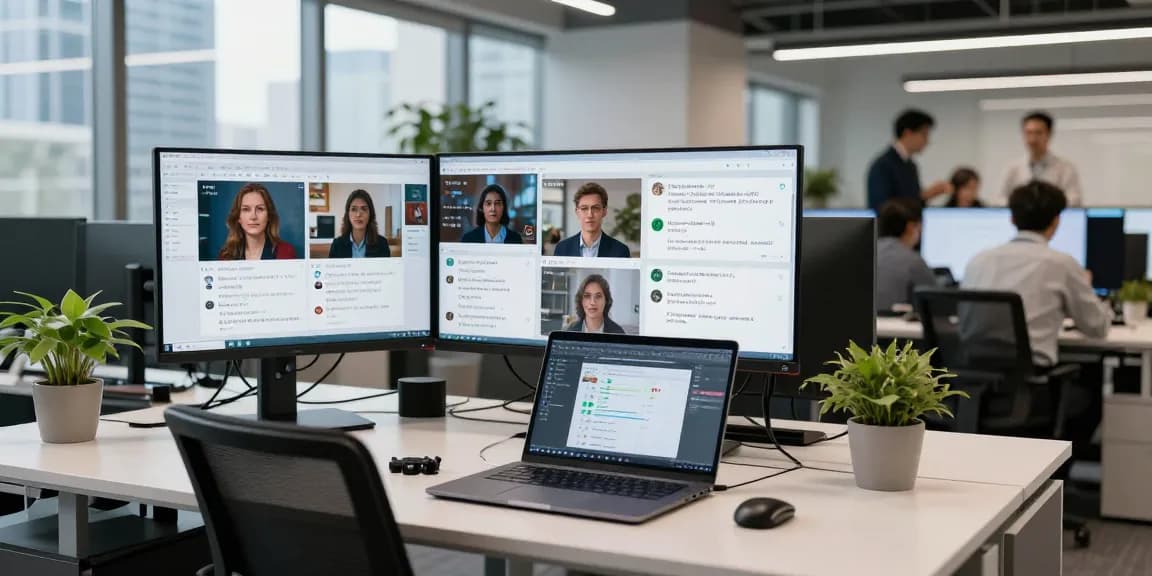
In the context of remote work, virtual desktops have become a vital tool for enhancing productivity and collaboration. Businesses can deploy virtual desktops to their workforce, allowing employees to access corporate resources and applications from any location—essential for a global workforce spread across disparate locations.
Additionally, virtual desktops streamline onboarding processes as new hires can get connected and start working with minimal physical infrastructure setup. This agility is essential for companies looking to remain competitive and adapt to the rapidly evolving business landscape.
Applications in Education and e-Learning
Virtual desktops are revolutionizing the education sector, particularly in remote-learning contexts. Educational institutions can provide students with access to a consistent software environment across various devices without the need for special hardware. This is particularly beneficial in a time when many students do not have access to high-performance computers at home.
Furthermore, educators can deploy resources efficiently, as all students access the same virtual resources. It reduces the need for extensive software installations on individual machines, simplifying IT management within education.
Gaming Experiences Enhanced by Virtual Desktop
Virtual desktops have also found their place within the gaming industry, facilitating immersive gaming experiences. Players can enjoy high-performance games streamed directly to their devices, enabling gaming on lesser hardware by tapping into powerful cloud processing. By utilizing virtual desktops, gamers are not limited by their local system capabilities, enhancing accessibility and enjoyment.
Moreover, virtual desktops allow for the integration of multiple gaming applications in one place, making it easier for users to manage their gaming libraries and social interactions without switching devices.
Advanced Features of Virtual Desktop
Multi-Monitor Support Explained
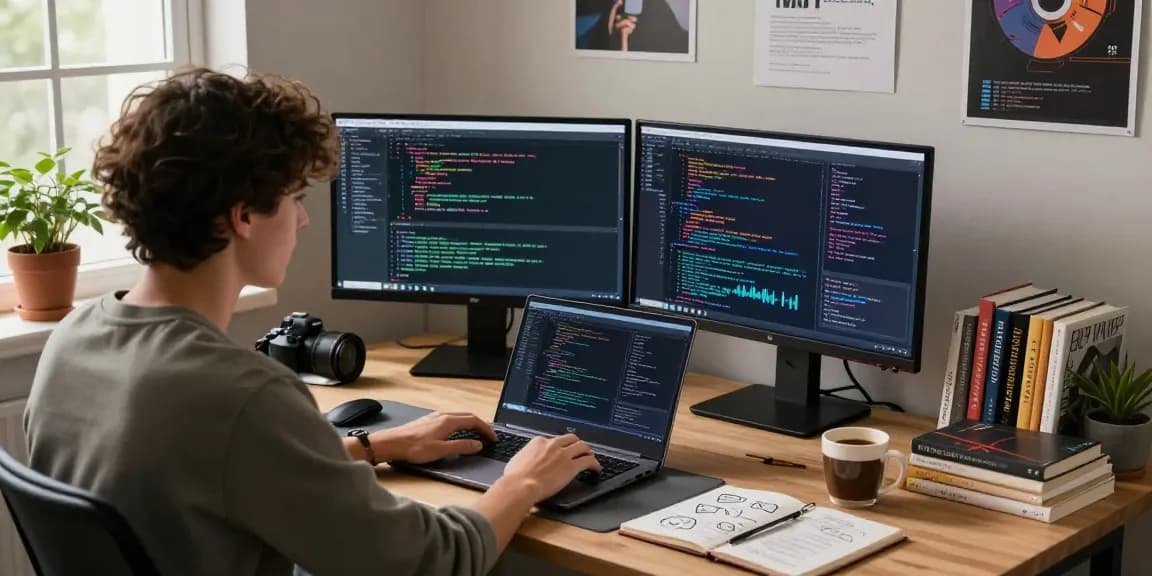
One such advanced feature of many virtual desktop solutions is multi-monitor support. This allows users to extend their virtual desktop across multiple screens, providing a more immersive work environment. Multi-monitor setups are particularly beneficial for tasks that require multitasking, such as programming, video editing, and design work.
Virtual desktops can simulate multiple screens seamlessly, allowing for separate applications to be displayed across the virtual displays as if they were local. This capability enhances productivity and enables users to work more efficiently by minimizing the need to toggle between applications.
Integration with Cloud Services
Virtual desktops can easily integrate with various cloud services, substantially enhancing their functionality and utility. Users can access documents, applications, and data hosted remotely, enabling collaborative working environments and increased storage solutions.
Through cloud integration, users can leverage remote backup systems and version control, further enhancing productivity. This means important files and applications are backed up in real-time and can be accessed without the fear of data loss, streamlining workflows across organizations.
Security Measures for Virtual Desktop Users
Security is a primary concern for organizations implementing virtual desktops. To mitigate risks, several advanced security measures can be adopted:
- Encryption: Data transmitted between the server and client devices should be encrypted to protect sensitive information from unauthorized access.
- Access Controls: Implement strict access controls to ensure that only authorized users can access certain applications and data on the virtual desktop.
- Regular Audits: Regularly auditing the security protocols and practices ensures compliance with industry standards and identifies vulnerabilities before they can be exploited.
- Endpoint Security: Furthermore, applying endpoint protection on client devices helps safeguard against malware and phishing attacks.
Measuring Success with Virtual Desktop
Key Performance Indicators to Track
Measuring the success of your virtual desktop implementation is critical. Key performance indicators (KPIs) can help you monitor the efficiency and effectiveness of the deployed system:
- User Satisfaction: Survey users to gauge their satisfaction with the virtual desktop experiences, including performance and accessibility.
- System Uptime: Monitor system uptime to ensure reliability and constant availability of resources.
- Resource Utilization: Evaluate how effectively resources are used. Underutilized resources suggest inefficiencies, while overutilized resources can indicate capacity issues.
- Cost Savings: Track cost savings achieved from transitioning to a virtual desktop environment as compared to previous setups.
User Feedback and Engagement Analysis
Collecting and analyzing user feedback is essential for refining the virtual desktop experience. Engaging users regularly through surveys or feedback forms can yield insights into performance issues and preferences. This iterative approach allows organizations to adapt quickly to user needs, enhancing overall user engagement and satisfaction.
A well-maintained feedback loop can foster a culture of continuous improvement where user suggestions lead to actionable changes within the virtual desktop environment.
Future Trends in Virtual Desktop Technology
The future of virtual desktop technology is bright, with several emerging trends expected to shape the landscape:
- Increased Use of Artificial Intelligence: Leveraging AI can automate resource allocation and predictive maintenance, enhancing performance and user experience.
- Enhanced Graphics Support: With advancements in graphics rendering, virtual desktops may soon offer richer visual experiences, especially beneficial for design and gaming applications.
- Rise of Edge Computing: Edge computing will further empower virtual desktop users by processing data closer to the source, improving speed and reliability.
- Focus on Sustainability: As companies increasingly prioritize environmental sustainability, virtual desktops may evolve to support greener initiatives by reducing the need for physical hardware and energy consumption.